Showing posts with label guide. Show all posts

Tuesday, 2 April 2024

How to add "Discord" in Steam's Big Picture Mode

 With the release of Steam deck a lot of people are turning into Steam Deck Big Picture Mode(BPM) to enjoy an exclusive gaming experience, to get your PC to behave like a console. However, BPM isn't as robust as steamOS and requires a lot of tinkering to make things work. Discord is a big part of social gaming experience so I am writing a guide to get it working in BPM.


Disclaimer: despite this guide, a discord upgrade might break the link and you may have to remove the app from steam and redo it.


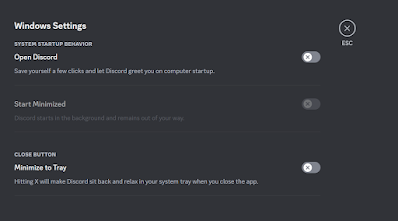
Disable Automatic startup of Discord and set your settings as follows:


Disable Hardware acceleration, this doesn't work very well in BPM


Close Discord, insure its not running in the background


Open Steam in regular mode, click on Games > Add a Non-Steam Game > Browse > Type (%localappdata%\Discord) in the path as show:


Navigate to the latest "app" build, you can sort it by date modified:


Select "Discord" and add, once you're back to the Steam window, you should see two discord options, select the one selected below:


Click on Settings on the newly added "Discord" app and make sure Steam input is enabled:


Launch BPM with your controller connect, Navigate to discord, before launching insure that Keyboard input (WASD) is set, you may also want to reduce Mouse sensitivity:


Go ahead and Launch discord, you should be able to use controller as a Mouse. If you "minimize" it and then press the "Steam" button on your controller, you can open the main steam menu on BPM and launch whichver game you want to play while discrod runs nicely in the background. If you want to close discord you can navigate back to Discord and hit the "X" button besides the resume button and that should close it.

If discord updates, this *might* stop working, in this case you just have to remove the non-steam game and add it again, giving the new "app-version" path on the Steam window where you added Discrod.

NOTE: I understand this doesn't have much to do with OpenSource .. It is what it is, this is my only outlet.

Sunday, 18 December 2016

How to Install Nvidia Drivers on Redhat/Centos 7 - Step by Step guide

  1. Nvidia needs "Development Tools" installed, if you installed it during RHEL installation, you're good, if you didn't, then execute the following commands:
  2. [root@localhost rpmbuild]# yum groups mark install "Development Tools" [root@localhost rpmbuild]# yum groups mark convert "Development Tools"
    [root@localhost rpmbuild]# yum groupinstall "Development Tools"
     
  3. Install Kernel Devel and Kernel headers
         yum install kernel-devel kernel-headers dkms
  4. Now run the following to get to know your Graphics Card (if you already know you can skip this part)
    lspci -nn | grep VGA
  5. Now download the appropriate driver from NVIDIA Downloads
  6. Open “/etc/modprobe.d/blacklist.conf” and add "blacklist nouveau" to the file (if it doesn't exist then create it)
  7. Create a new initramfs and take a backup of the existing one (this might not be needed as i think NVIDIA installer already does this, do it regardless)
    mv /boot/initramfs-$(uname -r).img /boot/initramfs-$(uname -r).img.bak  
    dracut -v /boot/initramfs-$(uname -r).img $(uname -r)
  8. Reboot your computer and login again
  9. Open a terminal and type:
    init 3
  10. Login as root, navigate to the folder where you have downloaded NVIDIA installer file and do the following:
    chmod 755 (NVIDIA installer filename)
    ./(NVIDIA Installer Filename)
  11. Go through the NVIDIA installer prompts, you can choose to install 32 bit libraries, but do save the X configurations at the end.
Cheers!
Source:
This is a compilation of various articles
http://www.tecmint.com/install-nvidia-drivers-in-linux/
https://access.redhat.com/discussions/1262603

How to add "Discord" in Steam's Big Picture Mode

 With the release of Steam deck a lot of people are turning into Steam Deck Big Picture Mode(BPM) to enjoy an exclusive gaming experience, t...